
How to Add a StreamRio Overlay to XSplit Broadcaster
How to Add a StreamRio Overlay to XSplit Broadcaster
XSplit Broadcaster can load web content directly into a scene with its Webpage source. That makes it a practical way to add StreamRio as a live companion overlay: copy your StreamRio overlay URL, add a Webpage source, paste the URL, then place the character beside your camera or stream layout.
This guide is written for creators searching for XSplit browser source, XSplit Webpage source overlay, how to add StreamRio overlay to XSplit, and stream overlay URL in XSplit Broadcaster.
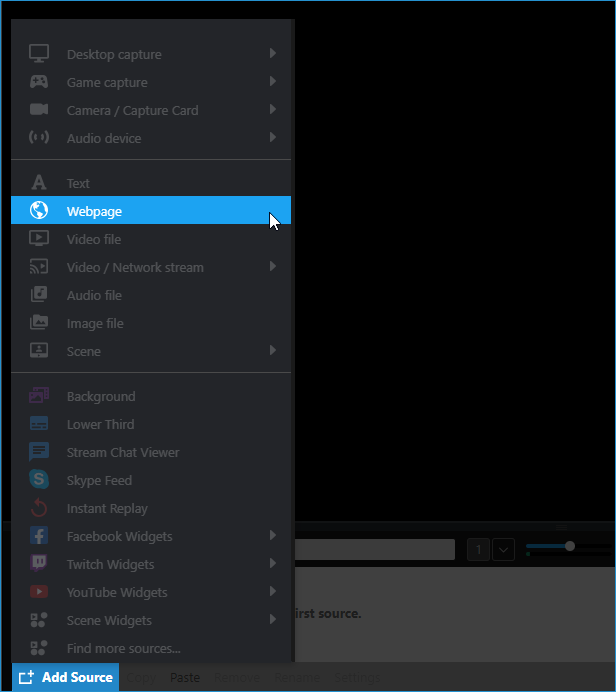
Official XSplit Webpage source screenshot saved locally for this setup guide.
Before you start
You need:
- XSplit Broadcaster installed.
- A StreamRio overlay ready in your StreamRio dashboard.
- Your private StreamRio overlay URL.
The StreamRio URL should be treated like a private streaming asset. Do not share it in chat, public posts, or visible screenshots.
Step 1: Copy your StreamRio overlay URL
Open StreamRio, go to your overlay setup area, and copy the browser overlay link. If you want to verify the link before using XSplit, open it in a normal browser tab. If the StreamRio companion loads there, it should also load through XSplit's Webpage source.
Step 2: Add a Webpage source in XSplit Broadcaster
In XSplit Broadcaster:
- Open the scene where you want StreamRio to appear.
- Click Add Source.
- Choose Webpage.
- Paste your StreamRio overlay URL.
- Click OK.
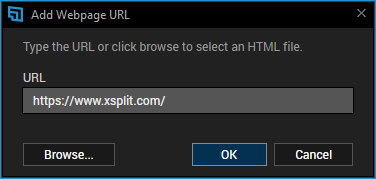
Official XSplit Add Webpage URL screenshot saved locally from XSplit Support.
XSplit's official Webpage source documentation says this source lets you add a webpage URL to a scene and interact with it like a browser. For StreamRio, the URL is the overlay itself.
Step 3: Use compact overlay dimensions
Do not make the StreamRio Webpage source full-screen by default. StreamRio is designed to feel like a companion next to the streamer, not a full-canvas layer that blocks gameplay, camera, chat, or alerts.
Start with a 4:5 vertical source size:
| Stream layout | Suggested Webpage source size |
|---|---|
| Character beside webcam | 600 x 750 |
| Small corner companion | 480 x 600 |
| Vertical layout | 560 x 700 |
| Larger Just Chatting scene | 720 x 900 |
Use full canvas sizing, such as 1920 x 1080, only when you intentionally want a full-scene effect.
Step 4: Adjust Webpage source properties
Open the Webpage source properties if you need to tune display behavior, transparency, scrolling, or performance.
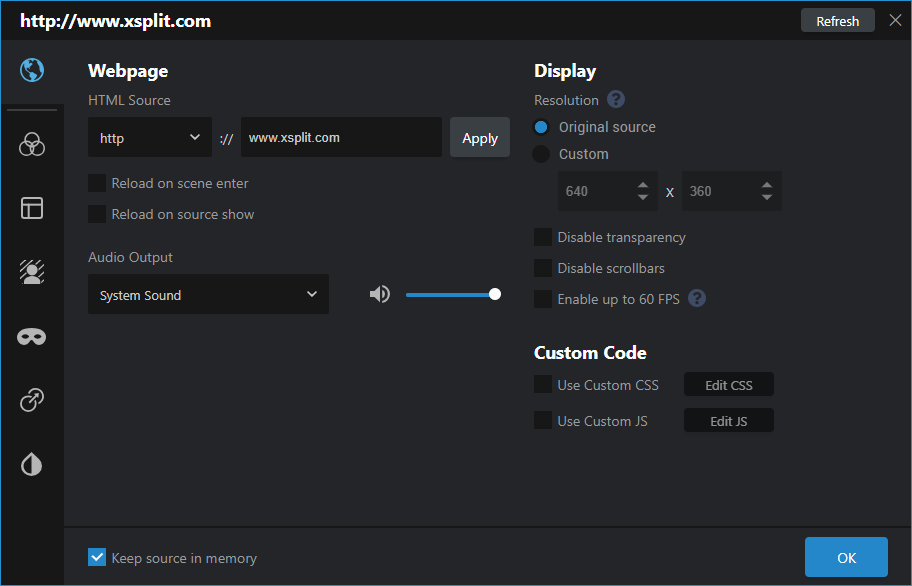
Official XSplit Webpage source properties screenshot saved locally from XSplit Support.
Recommended starting values:
| Setting | Recommendation |
|---|---|
| Source type | Webpage |
| URL | Your private StreamRio overlay URL |
| Size | Start around 600 x 750 |
| Transparency | Keep transparency enabled if available |
| Scrollbars | Hide or disable if visible |
| 60 FPS | Enable only if the overlay needs smoother motion and your PC can handle it |
Step 5: Place StreamRio beside the streamer
Good placements include:
- Lower-right corner beside the webcam.
- Lower-left corner away from game HUD elements.
- A dedicated side area in a Just Chatting layout.
- Near chat or alerts, as long as it does not cover text.
StreamRio should be visible enough to feel present, but not so large that it competes with your camera or gameplay.
Troubleshooting StreamRio in XSplit Broadcaster
StreamRio does not appear
Open the overlay URL in a browser. If it does not load there, copy the URL again from StreamRio. If it loads in a browser but not XSplit, refresh or recreate the Webpage source.
The overlay has a black background
Check the Webpage source display settings and make sure transparency is enabled when available. Also confirm the StreamRio overlay itself uses a transparent background.
The overlay is too large
Resize the source on the canvas or reduce its Webpage source dimensions. For most StreamRio scenes, 600 x 750 is a better starting point than 1920 x 1080.
The overlay is cropped
Increase the source height or width. Cropping usually means the webpage viewport is too small for the StreamRio character or reaction area.
The overlay feels heavy on performance
Try a smaller source size and avoid enabling 60 FPS unless you need it. Webpage sources can use additional CPU/GPU resources, especially with animated overlays.
FAQ
Is StreamRio an XSplit plugin?
No. StreamRio runs through XSplit's Webpage source, so you do not need a dedicated XSplit plugin.
Should StreamRio match my full XSplit canvas size?
Usually no. Use compact dimensions unless you intentionally want StreamRio to fill the whole scene.
Can I use StreamRio in multiple XSplit scenes?
Yes. Add the StreamRio Webpage source to each scene that needs it, then position and size it for that layout.
Image sources and usage notes
The XSplit screenshots in this article are saved locally from XSplit Support's Webpage source documentation: https://support.xsplit.com/en/article/webpage-1y1l6v/
XSplit and XSplit Broadcaster are trademarks or registered marks of their respective owners. StreamRio is not affiliated with or endorsed by XSplit. Screenshots are used for educational setup guidance and are credited to their original source.
Setup resources
Related StreamRio setup pages
Use these pages to plan the same animated character overlay across OBS, TikTok LIVE, and Twitch.