
How to Add a StreamRio Overlay to OBS Studio as a Browser Source
How to Add a StreamRio Overlay to OBS Studio as a Browser Source
If you want StreamRio to appear beside you on stream, OBS Studio is one of the cleanest ways to run it. StreamRio is a browser-based companion overlay, so in OBS you add it as a Browser Source, paste your StreamRio overlay URL, and place it where it feels natural in your scene.
This guide is written for creators searching for OBS browser source overlay, how to add StreamRio overlay to OBS, stream overlay browser source, or transparent companion overlay for OBS Studio. The important idea is simple: StreamRio should feel like a character sitting with the streamer, not a full-screen panel that covers the broadcast.
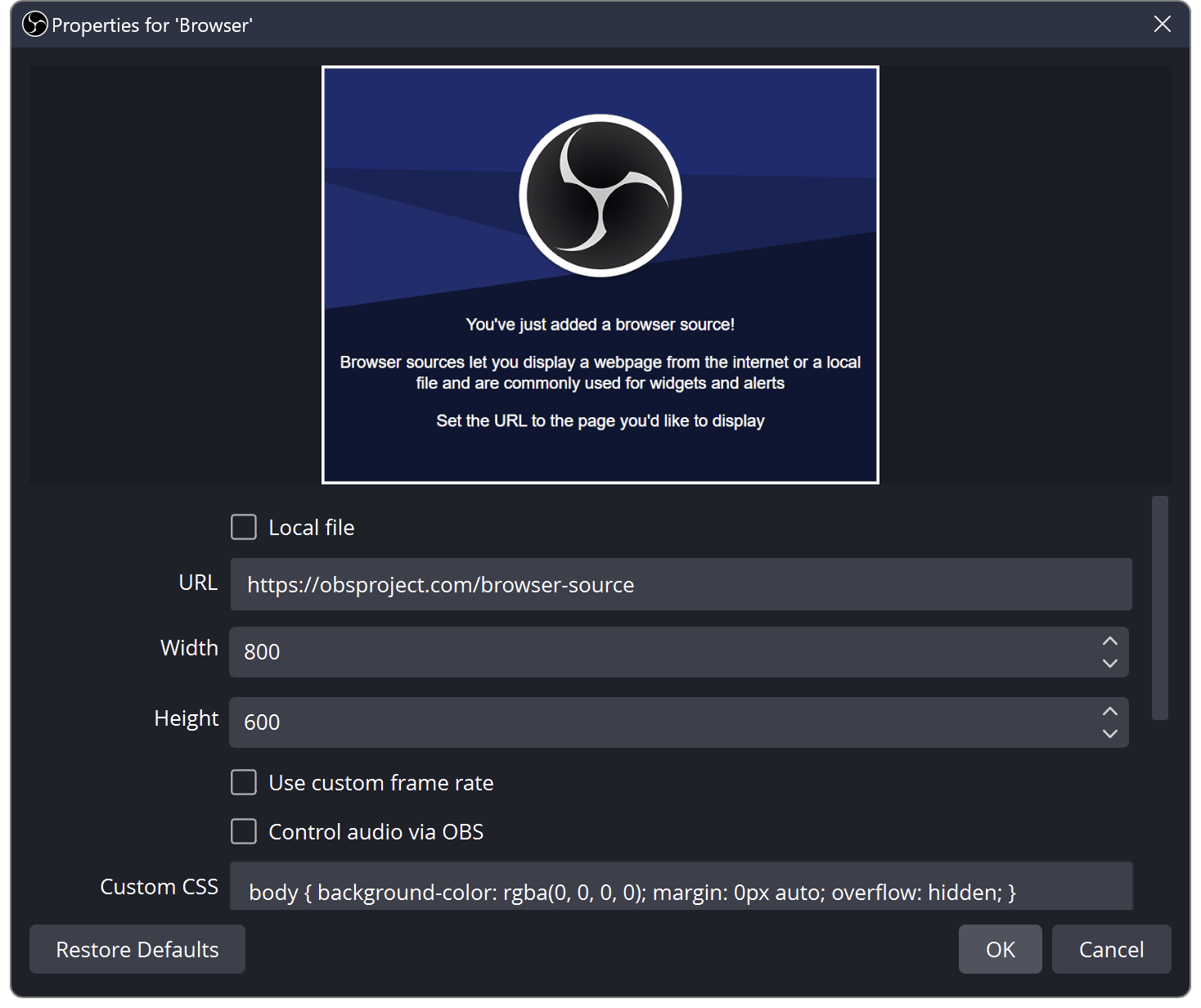
Official OBS Browser Source properties screenshot saved locally for this setup guide.
Before you start
You need three things:
- OBS Studio installed on your computer.
- A StreamRio account with an overlay ready to use.
- Your StreamRio overlay URL copied from the StreamRio dashboard.
In OBS, a Browser Source works like a small embedded web page inside your scene. That makes it a good fit for StreamRio because the overlay can stay transparent, animate, react, and update without needing a separate capture window.
Step 1: Copy your StreamRio overlay URL
Open StreamRio, go to your overlay or streaming setup page, and copy the browser overlay link. Treat this URL like a private stream key: it controls what appears on your broadcast, so do not paste it into public chat, descriptions, or screenshots.
A good quick check is to open the URL in a normal browser first. If the StreamRio companion loads there, OBS should be able to load it too.
Step 2: Add a Browser Source in OBS Studio
In OBS Studio:
- Open the scene where you want StreamRio to appear.
- In the Sources panel, click the + button.
- Choose Browser.
- Name the source something clear, such as StreamRio Overlay.
- Click OK.
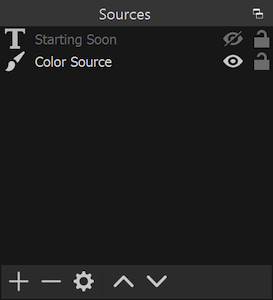
Official OBS Sources dock screenshot saved locally from the OBS Sources Guide.
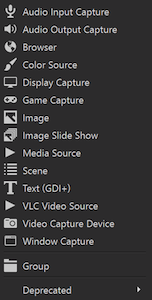
Official OBS Add Sources list screenshot saved locally from the OBS Sources Guide.
OBS will open the Browser Source properties window. This is where you paste the StreamRio overlay URL and choose the size of the browser viewport.
Step 3: Paste the StreamRio URL
In the Browser Source properties:
- Leave Local File turned off.
- Paste your StreamRio overlay URL into URL.
- Keep the default transparent CSS unless you have a specific reason to change it.
- Click OK or Apply after setting the size.
The official OBS documentation describes Browser Source as a way to add web content directly to OBS. That is exactly the pattern StreamRio uses: the character overlay is rendered from a web URL and then composited into your scene.
Step 4: Use compact dimensions for a companion overlay
This is the part that matters most for StreamRio.
Do not automatically set the Browser Source to 1920 x 1080 just because your canvas is 1920 x 1080. That advice can make sense for full-screen overlays, but StreamRio is meant to be a companion character near the streamer, not a giant layer covering gameplay or the camera.
Start with a 4:5 vertical source size:
| Stream layout | Suggested Browser Source size | Why it works |
|---|---|---|
| 16:9 stream, character beside webcam | 600 x 750 | Enough room for the character and reactions without covering the whole scene |
| Small corner companion | 480 x 600 | Good for gameplay-heavy scenes |
| Larger talk-show or Just Chatting layout | 720 x 900 | Gives the character more presence while staying local to one area |
| Recommended 4:5 starting point | 600 x 750 | Balanced vertical companion container |
After you add the source, resize it on the OBS canvas by dragging the red transform handles. Hold Shift only if you intentionally want to stretch the source. For most StreamRio overlays, keep the aspect ratio natural so the character does not look squashed.
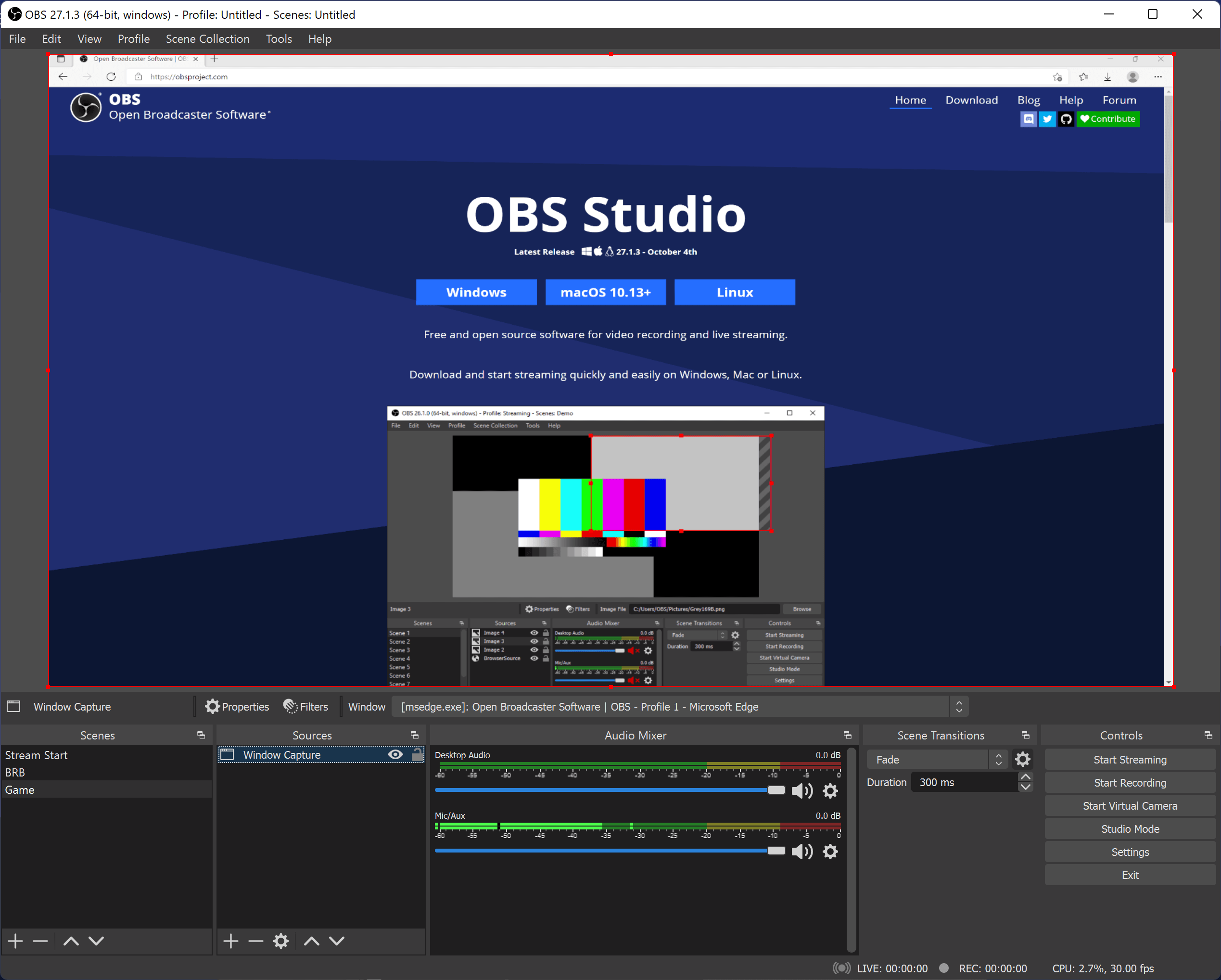
Official OBS bounding box screenshot saved locally from the OBS Sources Guide.
Step 5: Place StreamRio in the scene
Good placements usually include:
- Next to your webcam frame.
- Sitting near the lower-left or lower-right corner.
- Above a chat box, alert area, or branded lower third.
- In a dedicated vertical strip for Just Chatting scenes.
Keep StreamRio above the gameplay or camera layer in the Sources list, but below any critical alert text that must always be readable. If the character overlaps your face, gameplay HUD, subtitles, or sponsor graphics, scale it down and move it closer to an empty edge.
Step 6: Check transparency and motion
StreamRio overlays are designed to sit on top of your stream scene. If you see a solid background:
- Confirm the StreamRio overlay page itself has a transparent background.
- Keep OBS Browser Source custom CSS transparent.
- Refresh the Browser Source.
- Remove any custom CSS that adds a background color.
If the overlay looks frozen, right-click the Browser Source and use Refresh. You can also open the Browser Source properties and click the refresh cache option if OBS is holding an older version of the page.
Recommended OBS Browser Source settings for StreamRio
Use this as a practical starting point:
| Setting | Recommended value |
|---|---|
| Source type | Browser |
| URL | Your private StreamRio overlay URL |
| Width | 600, or 480 to 720 for smaller/larger scenes |
| Height | 750, or 600 to 900 while keeping a 4:5 ratio |
| FPS | Match your stream FPS if you enable custom frame rate; otherwise leave default |
| Custom CSS | Transparent body background, no margin, hidden overflow |
| Shutdown source when not visible | Optional; use it if you want to save resources between scenes |
| Refresh browser when scene becomes active | Helpful if the overlay needs to reset when switching scenes |
Although OBS may default to 800 x 600, switch StreamRio to a 4:5 vertical viewport such as 600 x 750. That shape better matches the companion character and keeps the overlay in a contained area.
Troubleshooting StreamRio in OBS Studio
StreamRio does not appear
Open the StreamRio overlay URL in Chrome or another browser. If it does not load there, regenerate or recopy the link from StreamRio. If it loads in the browser but not OBS, right-click the Browser Source and refresh it.
The overlay is too large
Open Browser Source properties and reduce width and height, or resize the source directly on the canvas. For a companion character, try 560 x 700 or 600 x 750 first.
The overlay covers the streamer
Move StreamRio near the edge of the layout, then lower its scale. The right size is the one that keeps the character readable without competing with your camera, game UI, or chat.
The overlay is cropped
Increase the Browser Source width or height. Cropping usually means the browser viewport is smaller than the StreamRio character or reaction area.
The background is not transparent
Make sure the Browser Source CSS is not forcing a colored background. A transparent OBS Browser Source usually uses a transparent body background, zero margin, and hidden overflow.
Best practices for a polished StreamRio OBS layout
- Build a separate scene for testing before changing your live scene.
- Keep StreamRio in a predictable area so returning viewers recognize it.
- Avoid full-screen Browser Source sizing unless you are intentionally using a full-scene StreamRio effect.
- Put StreamRio above the background/game layer and below essential labels or alerts.
- Check your layout at the same resolution you stream in, usually 1920 x 1080 or 1280 x 720.
FAQ
Is StreamRio an OBS plugin?
No. StreamRio runs as a Browser Source, so you do not need to install a plugin inside OBS Studio.
Should my StreamRio Browser Source match my OBS canvas size?
Usually no. Use canvas-sized dimensions only for full-screen overlays. For StreamRio's companion character use case, start compact, such as 600 x 750, and place it beside the streamer.
Can I use StreamRio in multiple OBS scenes?
Yes. You can add the same Browser Source to more than one scene, or duplicate it if each scene needs a different position or size.
Does StreamRio work with transparent backgrounds in OBS?
Yes. Browser Source supports transparent web content, which is why it works well for companion overlays, alert widgets, and animated stream elements.
Image sources and usage notes
The OBS Studio screenshots in this article are saved locally from official OBS Project documentation:
- Browser Source documentation: https://obsproject.com/kb/browser-source
- Sources Guide: https://obsproject.com/kb/sources-guide
OBS and OBS Studio are trademarks or registered marks of their respective owners. StreamRio is not affiliated with or endorsed by OBS Project. Screenshots are used for educational setup guidance and are credited to their original source.
Setup resources
Related StreamRio setup pages
Use these pages to plan the same animated character overlay across OBS, TikTok LIVE, and Twitch.