
How to Use a StreamRio Overlay with Restream Studio
How to Use a StreamRio Overlay with Restream Studio
Restream Studio is great for browser-based production, multistreaming, scenes, guests, graphics, and RTMP inputs. But StreamRio is a dynamic browser overlay URL, so the best Restream workflow is usually to render StreamRio inside OBS first, then send that finished scene into Restream.
This guide is written for creators searching for Restream Studio browser source, Restream overlay URL, how to add StreamRio overlay to Restream Studio, and dynamic stream overlay in Restream.
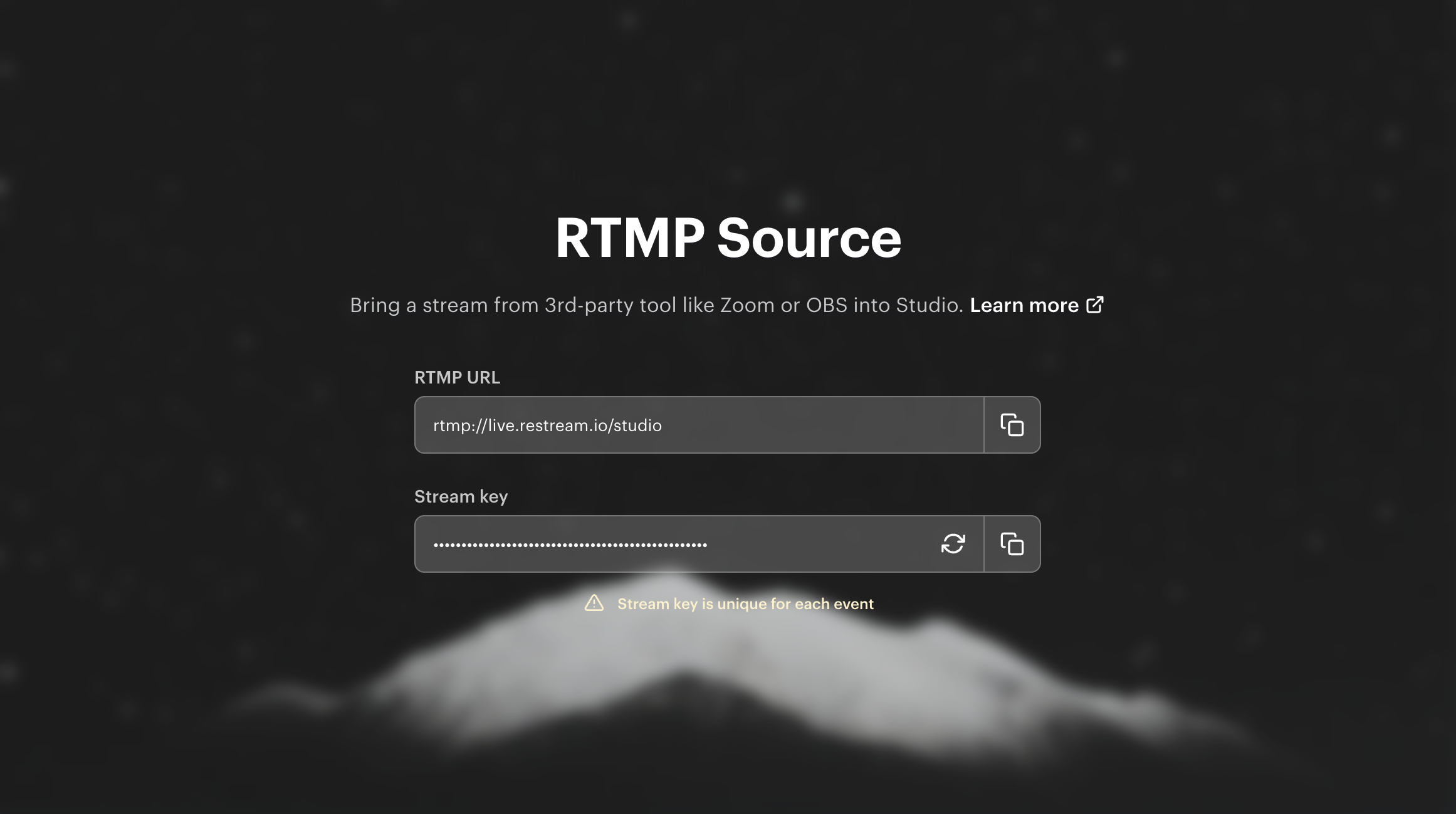
Official Restream RTMP Source screenshot saved locally for this setup guide.
The important limitation
Restream Studio's official graphics tools are built around logos, image overlays, video overlays, backgrounds, themes, fonts, and similar static or uploaded assets. Those are useful for branding, but a StreamRio companion is a live browser URL.
For a dynamic StreamRio overlay, use one of these practical paths:
| Goal | Best setup |
|---|---|
| Full StreamRio companion with transparency and reactions | Add StreamRio as a Browser Source in OBS, then stream to Restream |
| Use Restream Studio as the production room | Send OBS into Restream Studio with RTMP Source |
| Static branding only | Use Restream Studio Graphics, but this is not the dynamic StreamRio overlay |
Recommended setup: OBS plus Restream
The cleanest workflow is:
- Add StreamRio to OBS as a Browser Source.
- Size StreamRio compactly, such as 600 x 750.
- Place it beside your webcam or stream layout.
- Send the finished OBS output to Restream.
- Use Restream to multistream or route the feed to your channels.
This keeps StreamRio dynamic while still letting Restream handle distribution.
Step 1: Add StreamRio to OBS
In OBS:
- Click + in the Sources panel.
- Choose Browser.
- Paste your private StreamRio overlay URL.
- Start with compact dimensions like 600 x 750.
- Place StreamRio beside your camera or in an empty corner.
Do not set StreamRio to 1920 x 1080 unless you want a full-scene effect. StreamRio is meant to feel like a companion, not a layer that covers your whole broadcast.
Step 2: Connect OBS to Restream
Restream's official OBS guide explains two connection paths: connect your Restream account inside OBS, or use a stream key from Restream.
In OBS, go to Settings > Stream, choose Restream.io, then connect your account or paste your Restream stream key.
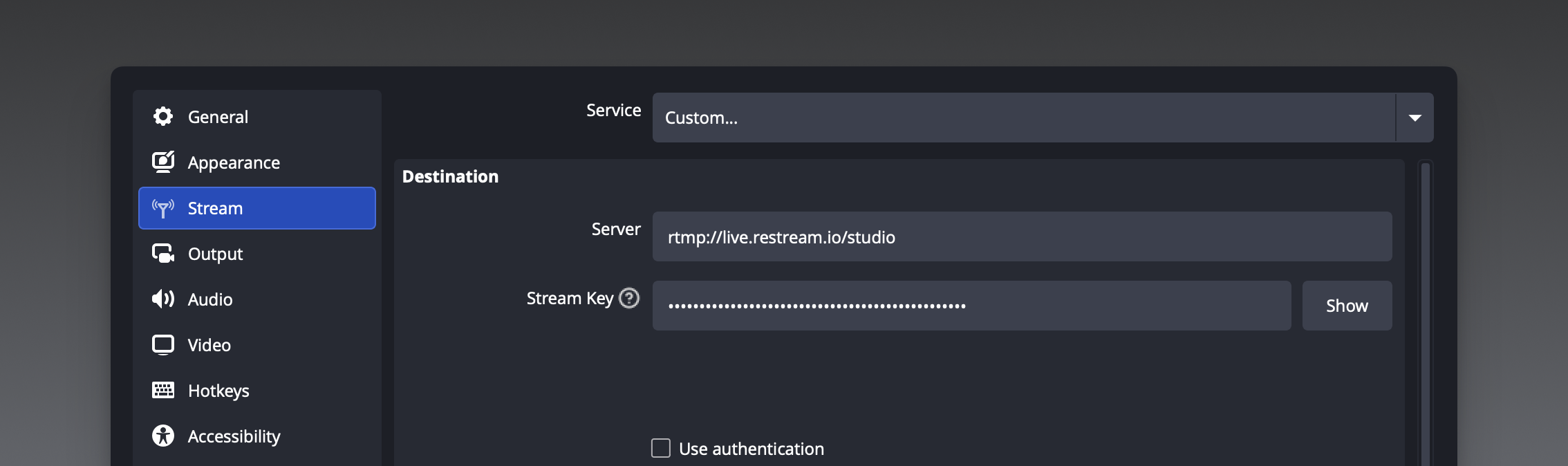
Official Restream OBS setup screenshot saved locally from Restream Help Center.
Alternative: Bring OBS into Restream Studio with RTMP Source
If you want to keep using Restream Studio's scenes, guests, captions, and graphics, use Restream Studio's RTMP Source feature to bring in the OBS output.
Restream's official RTMP Source documentation describes this flow:
- Click Add Scene in Restream Studio.
- Select Media.
- Click the + icon and choose RTMP Source.
- Copy the RTMP settings into your encoder.
- Start streaming from OBS so the feed appears in the scene.
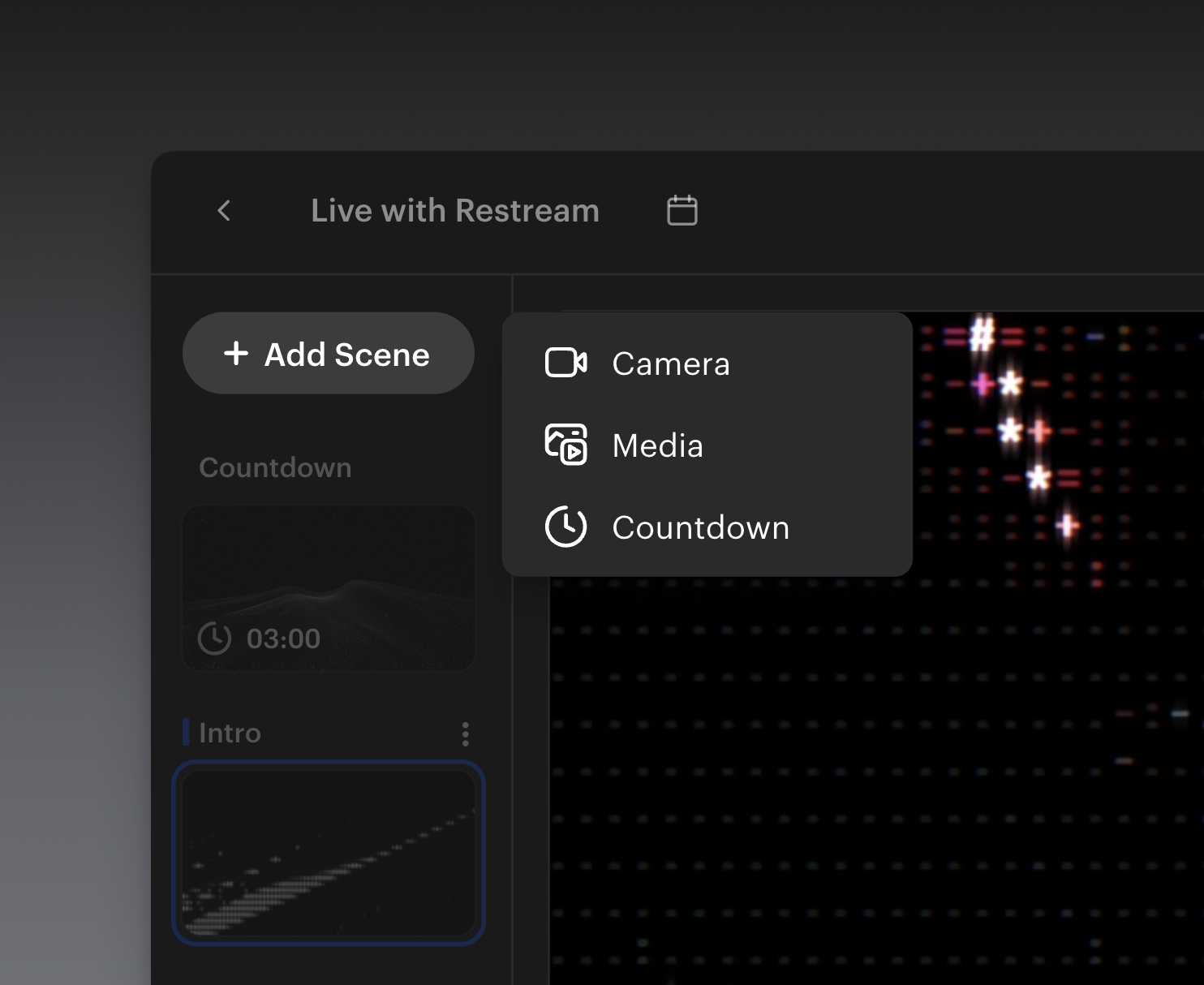
Official Restream Add Scene screenshot saved locally from Restream Help Center.
Note: Restream states RTMP Source is available on Business and custom Enterprise plans, and only one RTMP Source can be used at a time in Studio.
Why not upload StreamRio as a Restream overlay?
Restream Studio Graphics can be excellent for static brand assets, but StreamRio is not a static PNG or MP4. It is a live web overlay that needs a browser runtime.
If you upload a static image or video, you lose StreamRio's dynamic behavior. If you screen-share a browser tab, you may lose transparency and create awkward cropping or background issues. OBS Browser Source is the right place to render StreamRio.
Sizing StreamRio for a Restream workflow
Even if your final stream is 1920 x 1080, your StreamRio Browser Source in OBS should usually be compact:
| Placement | Suggested size |
|---|---|
| Beside camera | 600 x 750 |
| Small corner companion | 480 x 600 |
| Vertical layout | 560 x 700 |
| Larger talk show scene | 720 x 900 |
Then send the full OBS scene to Restream. The full output can be 1080p, while the StreamRio source itself stays small and intentional.
Troubleshooting StreamRio with Restream Studio
I cannot find a Browser Source URL option in Restream Studio
Use OBS. Add StreamRio as a Browser Source in OBS, then connect OBS to Restream or bring OBS into Restream Studio with RTMP Source.
StreamRio loses transparency when screen sharing
That is expected with many screen share workflows. Browser Source in OBS is the better method for transparent overlays.
My Restream Studio Graphics overlay is static
Restream Graphics are for uploaded graphics and videos. StreamRio needs a live browser URL, so use OBS Browser Source for the dynamic version.
RTMP Source is unavailable
Use direct OBS-to-Restream streaming instead, or check whether your Restream plan includes RTMP Source.
FAQ
Can Restream Studio display StreamRio directly as a browser URL?
For a reliable dynamic StreamRio companion, use OBS Browser Source and send the result into Restream. Restream Studio's standard Graphics workflow is not the same as an OBS-style Browser Source.
Can I still use Restream Studio graphics?
Yes. Use Restream Studio graphics for static brand elements, lower-thirds, backgrounds, and uploaded overlays. Use OBS for the live StreamRio companion.
Should StreamRio be full-screen before sending to Restream?
No. Keep StreamRio compact inside OBS, then send the full composed scene to Restream.
Image sources and usage notes
The Restream screenshots in this article are saved locally from official Restream Help Center pages:
- RTMP Source in Restream Studio: https://support.restream.io/en/articles/8544194-add-your-encoder-s-feed-to-your-stream-in-studio
- Connect OBS to Restream: https://support.restream.io/en/articles/111656-connect-obs-to-restream
- Add graphics to your stream in Studio: https://support.restream.io/en/articles/8540835-add-graphics-to-your-stream-in-studio
Restream, OBS, and OBS Studio are trademarks or registered marks of their respective owners. StreamRio is not affiliated with or endorsed by Restream or OBS Project. Screenshots are used for educational setup guidance and are credited to their original sources.
Setup resources
Related StreamRio setup pages
Use these pages to plan the same animated character overlay across OBS, TikTok LIVE, and Twitch.