
How to Add a StreamRio Overlay to StreamElements SE.Live / OBS.Live
How to Add a StreamRio Overlay to StreamElements SE.Live / OBS.Live
StreamElements SE.Live is an OBS Studio plugin, so adding StreamRio works the same way as adding a browser overlay in OBS: create a Browser Source, paste your StreamRio overlay URL, then size and place it in your scene.
This guide is for creators searching for SE.Live browser source, OBS.Live overlay URL, StreamElements OBS browser source, and how to add StreamRio overlay to StreamElements SE.Live.
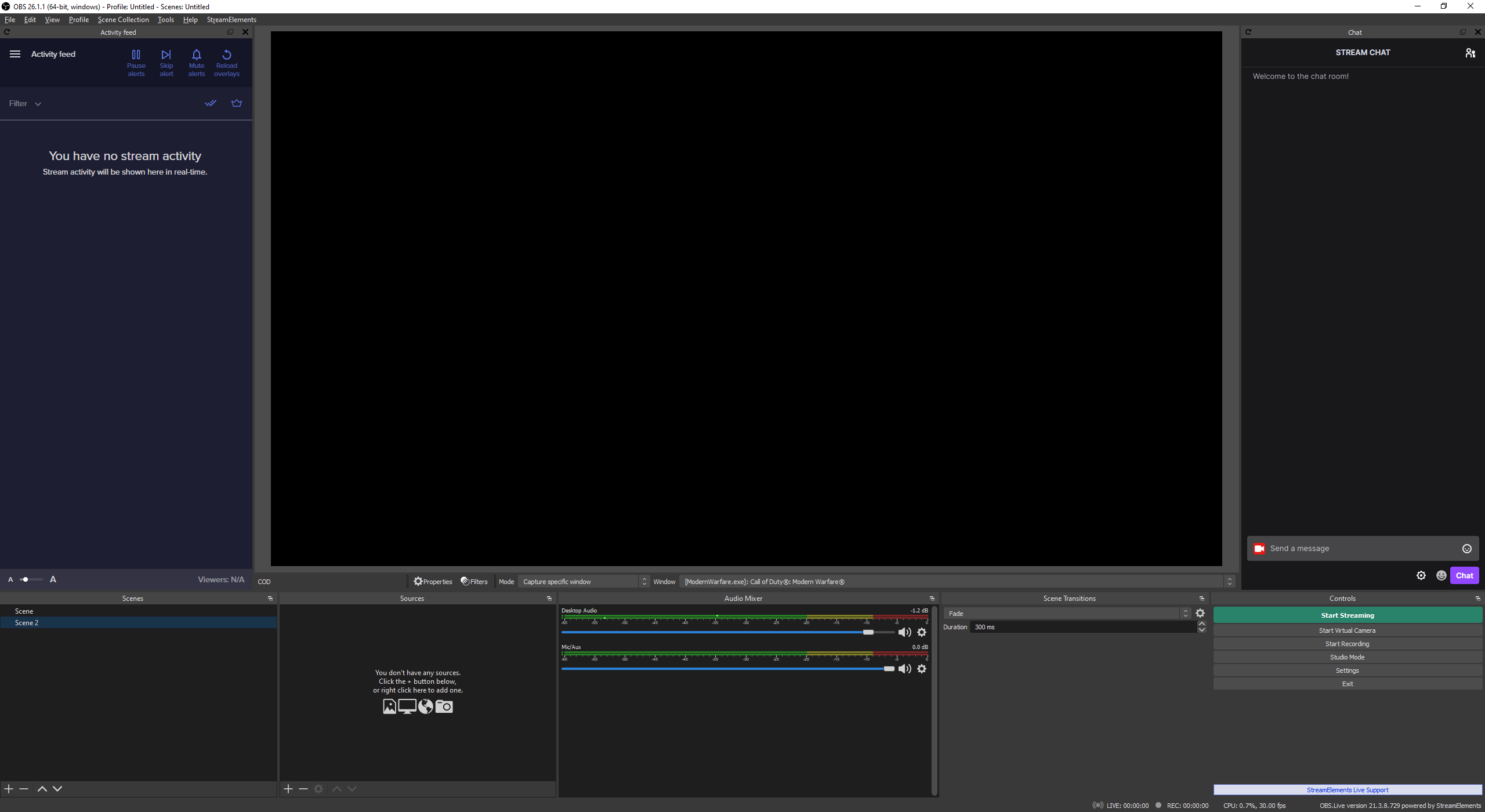
Official StreamElements SE.Live screenshot saved locally for this setup guide.
What SE.Live changes, and what it does not
SE.Live adds StreamElements docks and workflow features inside OBS Studio. It does not change the basic StreamRio setup pattern. StreamRio is still a browser-based overlay, so the correct source type is Browser Source inside OBS.
StreamElements' own SE.Live setup guide also describes the overlay flow as copying an overlay URL and creating a Browser Source in SE.Live. StreamRio follows the same URL-based source pattern.
Before you start
You need:
- OBS Studio with SE.Live installed.
- A StreamRio overlay ready to use.
- Your private StreamRio overlay URL.
Do not expose the StreamRio URL publicly. Anyone with the link may be able to load your overlay.
Step 1: Copy your StreamRio overlay URL
Open StreamRio and copy the overlay browser URL from your dashboard. Test it in a browser first if you want a quick sanity check.
Step 2: Add a Browser Source in SE.Live / OBS
Inside OBS with SE.Live installed:
- Open the scene where StreamRio should appear.
- In Sources, click +.
- Select Browser.
- Name the source StreamRio Overlay.
- Paste your StreamRio overlay URL.
- Click OK or Apply.
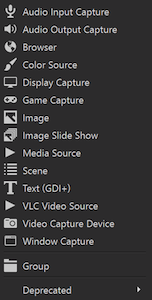
Official OBS Add Sources screenshot saved locally from OBS Project documentation.
Step 3: Use StreamRio companion sizing
A common mistake is to set every browser overlay to 1920 x 1080. That can make sense for full-scene overlays, but it is not the right default for StreamRio.
StreamRio's core use case is a companion character that sits near the streamer. Start compact with a 4:5 vertical source:
| Scene type | Suggested Browser Source size |
|---|---|
| Companion beside webcam | 600 x 750 |
| Small corner layout | 480 x 600 |
| Vertical stream area | 560 x 700 |
| Just Chatting layout | 720 x 900 |
Resize on the OBS canvas after adding the source. Keep the character visible, but leave your face, gameplay, chat, and alerts unobstructed.
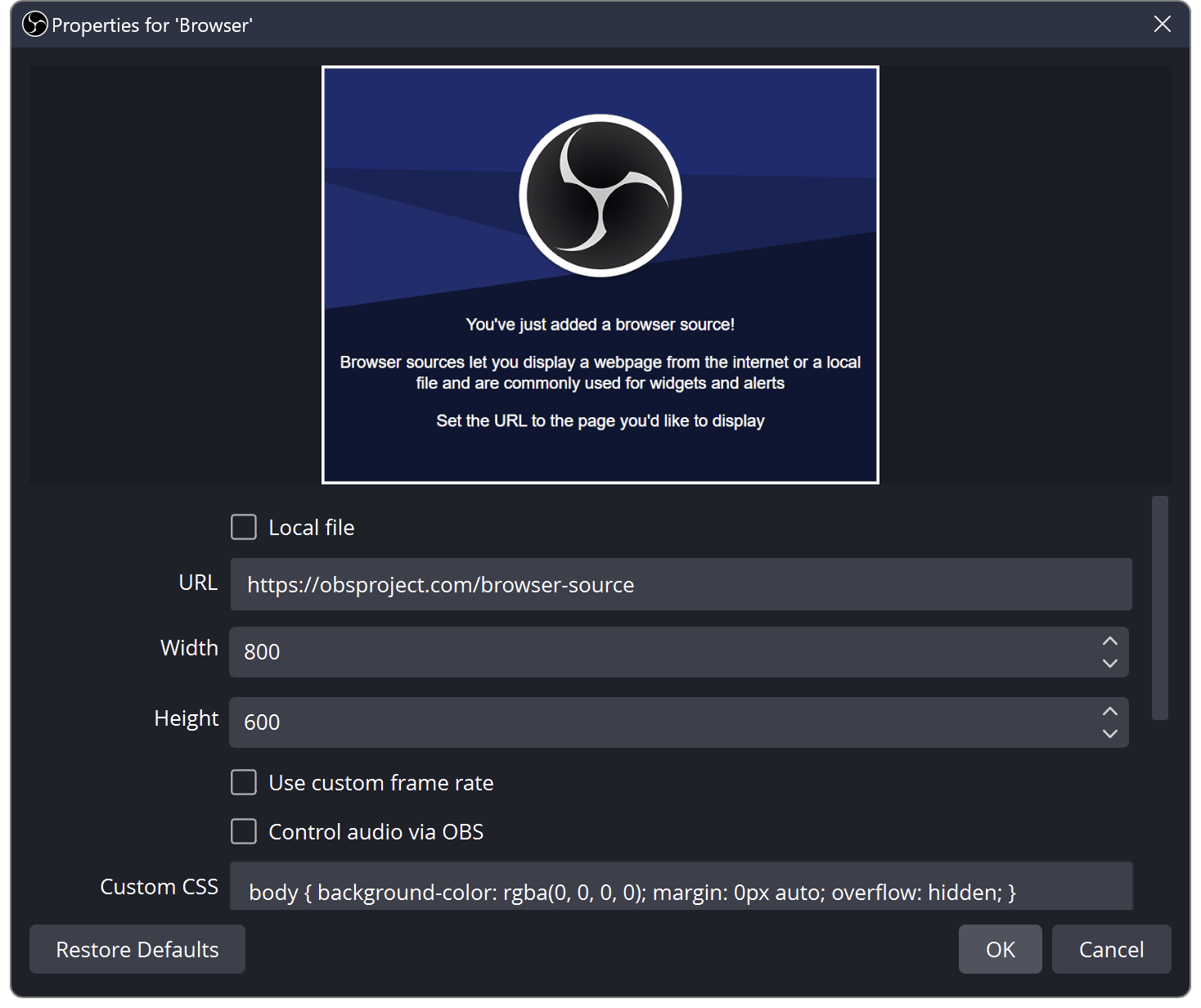
Official OBS Browser Source properties screenshot saved locally from OBS Project documentation.
Step 4: Layer StreamRio correctly
Put the StreamRio Browser Source above your camera/game/background layer, but below any urgent alert text that must always stay readable.
A typical source order might be:
- Alerts and important text.
- StreamRio Overlay.
- Webcam frame.
- Game capture or display capture.
- Background art.
Step 5: Refresh and test before going live
Before your stream starts:
- Toggle the source visibility off and on.
- Right-click the Browser Source and refresh it if needed.
- Confirm transparency works.
- Confirm StreamRio does not cover your camera or game UI.
- Switch scenes and make sure the overlay still appears where expected.
Troubleshooting SE.Live Browser Source issues
StreamRio does not show up
Open the StreamRio URL in a normal browser. If it loads there, refresh the Browser Source in OBS. If it does not load, copy the overlay URL again from StreamRio.
The overlay is scaled strangely
Open Browser Source properties and reset the width/height to a compact size like 600 x 750. Then resize on the canvas instead of using full-canvas dimensions.
The overlay is hidden behind other sources
Move the StreamRio Browser Source higher in the Sources list.
StreamElements docks are visible, but StreamRio is not on stream
Docks are not stream sources. Make sure StreamRio was added under the Sources panel as a Browser Source, not only opened in a dock or browser tab.
Performance drops
Try smaller Browser Source dimensions, close unnecessary browser tabs, and avoid duplicating the same animated overlay across too many scenes.
FAQ
Is StreamRio a StreamElements overlay?
No. StreamRio is its own browser-based overlay. SE.Live can display it because SE.Live uses OBS Browser Sources.
Does OBS.Live still work the same way?
Yes for the overlay workflow. OBS.Live/SE.Live setups use OBS-style Browser Sources for URL overlays.
Should StreamRio be 1920 x 1080 in SE.Live?
Usually no. Use full canvas only for full-scene effects. For a StreamRio companion character, start around 600 x 750.
Image sources and usage notes
Images in this article are saved locally from official documentation pages:
- StreamElements SE.Live guide: https://support.streamelements.com/hc/en-us/articles/10474584767762-Getting-Started-with-SE-Live
- OBS Browser Source documentation: https://obsproject.com/kb/browser-source
- OBS Sources Guide: https://obsproject.com/kb/sources-guide
StreamElements, SE.Live, OBS.Live, OBS, and OBS Studio are trademarks or registered marks of their respective owners. StreamRio is not affiliated with or endorsed by StreamElements or OBS Project. Screenshots are used for educational setup guidance and are credited to their original sources.
Setup resources
Related StreamRio setup pages
Use these pages to plan the same animated character overlay across OBS, TikTok LIVE, and Twitch.