
How to Add a StreamRio Overlay to TikTok LIVE Studio
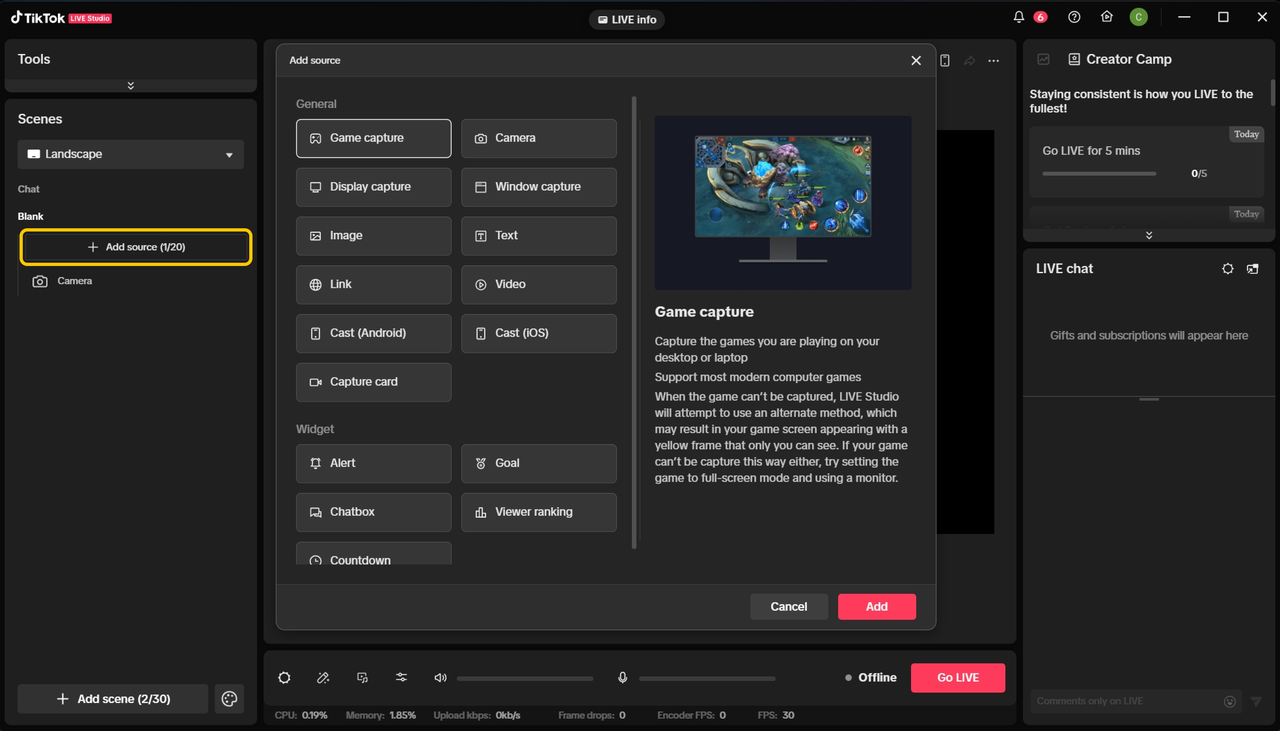
Image source: TikTok LIVE Studio official Help Center, saved locally for educational setup guidance.
TikTok LIVE Studio can display a StreamRio overlay the same way OBS or Streamlabs can: by loading your overlay URL as a webpage source. In TikTok LIVE Studio, this source is commonly called a Link source. Many creators still search for browser source, web source, URL overlay, or TikTok LIVE Studio overlay, so this guide uses those terms together.
Use this tutorial to add StreamRio character reactions, gift-triggered animations, Twitch or TikTok event reactions, and other live overlay moments directly into TikTok LIVE Studio.
Quick Setup
- Open your StreamRio dashboard.
- Connect TikTok LIVE and configure your Trigger Rules.
- Copy your production StreamRio Overlay URL.
- Open TikTok LIVE Studio and choose the scene you use for streaming.
- Click Add source.
- Choose Link, sometimes described as a browser or webpage source.
- Paste your StreamRio overlay URL.
- Start with a compact source size, such as 560 x 700 or 600 x 750, then scale and place the character where it does not cover the streamer or key content.
- Move the Link source above your game, camera, or screen capture.
- Send a test trigger in StreamRio before going live.
TikTok LIVE Studio Browser Source vs Link Source
If you are coming from OBS or Streamlabs, you may be looking for Browser Source. TikTok LIVE Studio uses slightly different wording. TikTok's help center describes sources as inputs that you add to a scene, and lists Link as the source type for adding a webpage preview to your LIVE.
That means the correct path for StreamRio is:
Add source -> Link -> paste StreamRio Overlay URL
The result is the same idea as a browser source: TikTok LIVE Studio renders a live webpage inside your scene. StreamRio's overlay is already a hosted webpage, so there is no plugin to install and no browser tab to capture.
Before You Add StreamRio to TikTok LIVE Studio
Prepare these items first so setup is smooth:
| Requirement | Why it matters |
|---|---|
| StreamRio account | Your overlay URL is created inside your dashboard. |
| TikTok LIVE connection | StreamRio needs the correct event source for gifts and live interactions. |
| Active Trigger Rules | Rules decide which gifts, likes, follows, or events trigger reactions. |
| Production Overlay URL | TikTok LIVE Studio needs this URL in the Link source. |
| TikTok LIVE Studio scene | Add the overlay to the exact scene you will use while live. |
If your StreamRio dashboard still shows a masked or locked URL, unlock the production overlay URL before going live. Preview mode is useful for setup, but TikTok LIVE Studio should use the live production URL.
Step 1: Copy Your StreamRio Overlay URL
In StreamRio, open the dashboard and find the overlay preview or overlay controls area. Click Copy URL after the production URL is unlocked.
Your URL will look like this:
https://streamrio.com/overlay/your-overlay-key
Keep this URL private. Do not show it in a public screenshot, chat message, video description, or stream scene. It is meant to be pasted into your streaming software, not shared with viewers.
Step 2: Add a Link Source in TikTok LIVE Studio
Open TikTok LIVE Studio and choose the scene where StreamRio reactions should appear.
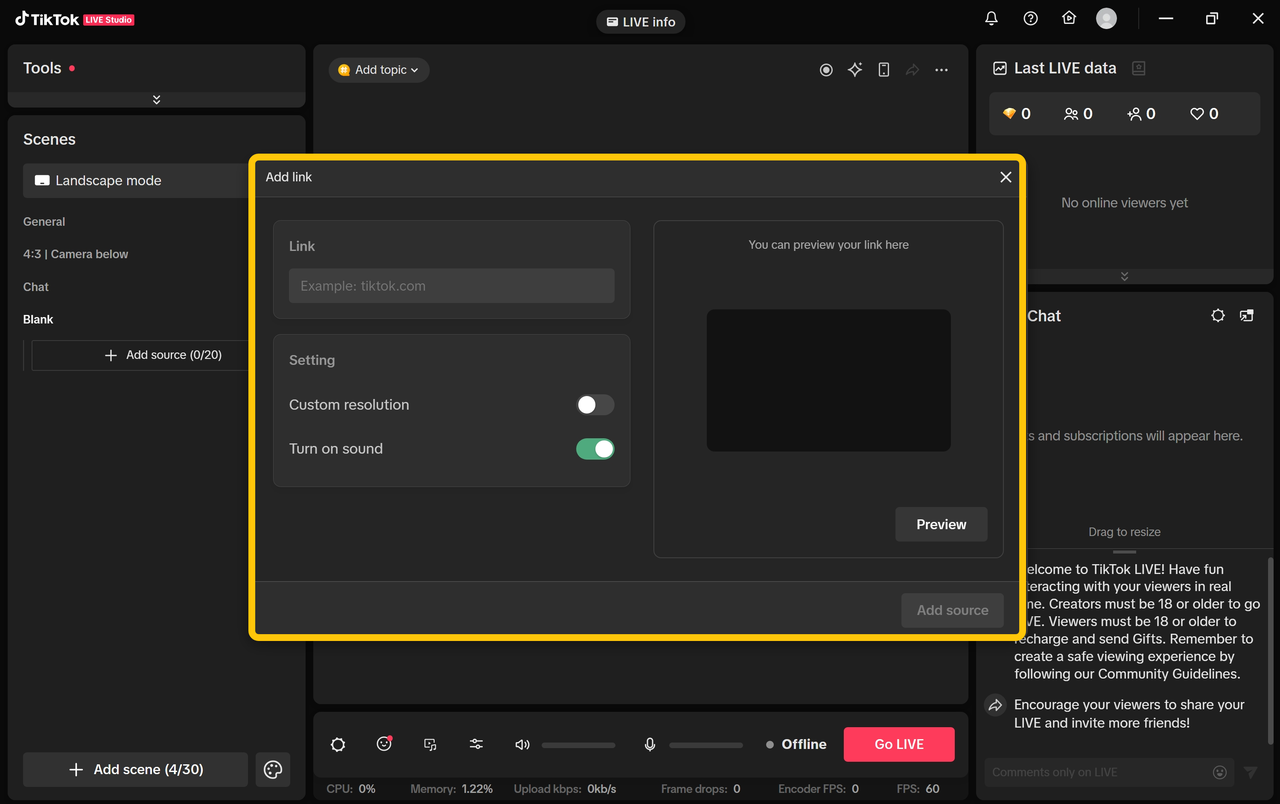
Image source: TikTok LIVE Studio official Help Center, saved locally for educational setup guidance.
Then follow these steps:
- Find the Sources area for the selected scene.
- Click Add source.
- Choose Link.
- Name it StreamRio Overlay.
- Paste your StreamRio Overlay URL.
- Save or confirm the source.
A clear name matters. When your scene grows to include camera, screen capture, game capture, chatbox, alerts, images, and widgets, StreamRio Overlay is much easier to identify than Link 1.
Step 3: Use the Best TikTok LIVE Studio Link Settings
The most important setting is size. For StreamRio, do not start by filling the whole TikTok canvas. Treat the Link source as a character companion box that you can place beside the streamer, near the lower corner, or in another safe area.
| Stream layout | Recommended StreamRio source size |
|---|---|
| Vertical TikTok stream | 560 x 700 or 600 x 750 |
| Landscape TikTok stream | 600 x 750 or 720 x 900 |
| Small corner companion | 480 x 600 |
| Full-scene effects only | Match the full canvas intentionally |
If TikTok LIVE Studio gives you position and scale controls instead of explicit width and height fields, add the Link source, scale it down, and place it where the character feels like it is accompanying the streamer. Use a full-canvas source only when you intentionally want large reactions that can travel across the whole scene.
Step 4: Place the Overlay in the Right Layer Order
TikTok LIVE Studio displays sources by layer order. If StreamRio is below a full-screen game capture, viewers may not see it even though the Link source is loaded correctly.
A clean vertical TikTok LIVE layout often looks like this:
- Chat, goal, or native TikTok widgets
- StreamRio Overlay
- Camera frame or facecam decoration
- Camera
- Game capture, display capture, or phone cast
- Background image or scene art
For vertical streams, keep the character away from TikTok app UI areas, captions, and chat-heavy regions. A companion that looks perfect in the preview can feel crowded after LIVE comments, gift labels, and viewer controls appear, so leave extra breathing room around the streamer.
Step 5: Test Gift and Event Reactions
Before going live, test the full chain:
- Confirm TikTok LIVE is connected in StreamRio.
- Confirm your selected character and Trigger Rules are active.
- Use StreamRio's test trigger controls.
- Watch the TikTok LIVE Studio preview.
- Refresh the Link source if you changed the overlay URL, character, or rules.
Check for these signs:
- The StreamRio reaction appears in TikTok LIVE Studio.
- The overlay background is transparent.
- The reaction is not hidden behind another source.
- The character appears at the expected size.
- The animation feels smooth enough for your stream.
- The correct TikTok gift, like, follow, or supported event triggers the expected reaction.
Best Practices for TikTok LIVE Studio Overlays
Use vertical-safe placement
TikTok is usually consumed vertically. Even if you stream gameplay, many viewers watch on phones. Place StreamRio reactions where they add energy without covering the most important action, subtitles, facecam, product area, or chat moments.
Keep the overlay URL stable
If you regenerate your StreamRio overlay URL, update the Link source in TikTok LIVE Studio immediately. A stale URL is one of the easiest ways to end up with a blank overlay during pre-live checks.
Use one Link source for StreamRio
Avoid adding the same StreamRio URL multiple times in the same scene. Duplicate Link sources can make troubleshooting harder and may add unnecessary rendering load.
Test after scene changes
If you duplicate scenes, change layouts, or switch between vertical and landscape canvases, retest StreamRio. Layer order and scaling can change even when the URL is still correct.
Troubleshooting StreamRio in TikTok LIVE Studio
The Link source is blank
Open the StreamRio URL in a normal browser first. If it does not load there, check that the production URL is unlocked and copied completely.
If it loads in your browser but not in TikTok LIVE Studio, remove and re-add the Link source, then paste the URL again. Also confirm your computer can reach StreamRio without a VPN or network block.
The overlay is hidden behind gameplay
Move StreamRio Overlay higher in the source list. If your game capture, display capture, or phone cast is above StreamRio, it can cover the overlay completely.
The overlay is too small or too large
If the character is too large, scale the Link source down or start with a smaller source size like 560 x 700. If the animation is cropped, increase the source height before increasing width. Avoid filling the whole vertical canvas unless you are building a full-screen effect.
The background is black instead of transparent
Make sure you pasted the actual StreamRio overlay URL, not the dashboard URL. The overlay route is designed for scene software. A dashboard page may include normal website backgrounds and controls.
Reactions do not trigger from TikTok gifts
Check your StreamRio TikTok connection, selected character, active Trigger Rules, and gift conditions. If the visual source loads but no events play, the issue is usually event routing rather than TikTok LIVE Studio rendering.
Animations look choppy
Browser-style sources can become choppy when the scene is heavy. Try reducing source size, removing duplicate Link sources, closing unused apps, or simplifying other animated widgets. If your main camera and gameplay are smooth but overlays stutter, the bottleneck may be overlay rendering rather than internet upload.
TikTok LIVE Studio Overlay SEO FAQ
Does TikTok LIVE Studio have Browser Source?
TikTok LIVE Studio commonly uses Link for webpage-based sources. If a tutorial says Browser Source, look for Add source -> Link in TikTok LIVE Studio.
Can I use StreamRio in TikTok LIVE Studio without OBS?
Yes. Paste your StreamRio production overlay URL directly into a TikTok LIVE Studio Link source. OBS is not required for this setup.
What size should my TikTok LIVE Studio overlay be?
For a StreamRio companion, start around 560 x 700 or 600 x 750, then scale it in TikTok LIVE Studio. Full canvas sizes like 1080 x 1920 are only for full-screen overlay effects, not the default companion setup.
Can StreamRio react to TikTok LIVE gifts?
Yes. StreamRio is built for live character reactions triggered by supported TikTok LIVE events, including gifts where available. Connect TikTok in StreamRio and configure Trigger Rules before testing in TikTok LIVE Studio.
Should StreamRio be above or below my game capture?
Place StreamRio above game capture if you want viewers to see reactions over gameplay. Put it below only when you intentionally want another visual layer to cover part of the overlay.
Why does my TikTok LIVE Studio overlay URL work in a browser but not in Studio?
Try re-adding the Link source, checking network access, and making sure the URL is the production StreamRio overlay URL. If the issue only happens in TikTok LIVE Studio, simplify the scene and test a fresh scene with only the Link source.
Final Checklist
Before starting your TikTok LIVE, confirm:
- The StreamRio production Overlay URL is unlocked.
- TikTok LIVE is connected in StreamRio.
- Trigger Rules are active and mapped to the right reactions.
- TikTok LIVE Studio uses Add source -> Link.
- The Link URL field contains the full StreamRio overlay URL.
- Source size fits a companion character area instead of covering the whole scene.
- StreamRio Overlay is above gameplay or screen capture.
- A test reaction appears in the TikTok LIVE Studio preview.
- The overlay does not cover important mobile UI or stream content.
Once those checks pass, your StreamRio overlay is ready for TikTok LIVE Studio.
Screenshot and Trademark Notice
TikTok LIVE Studio screenshots in this guide are saved locally from TikTok LIVE Studio's official Help Center for educational setup guidance. TikTok trademarks, product names, and interface screenshots belong to their respective owner. StreamRio is not affiliated with or endorsed by TikTok.
References
Setup resources
Related StreamRio setup pages
Use these pages to plan the same animated character overlay across OBS, TikTok LIVE, and Twitch.