
How to Add a StreamRio Overlay to PRISM Live Studio
How to Add a StreamRio Overlay to PRISM Live Studio
PRISM Live Studio can embed web content in a stream with Browser Capture on desktop, and its mobile guide also describes a Web Browser Widget for loading a website as a broadcast source. That makes PRISM a good fit for StreamRio's browser-based companion overlay.
This guide is for creators searching for PRISM Live Studio browser source, PRISM Browser Capture overlay, PRISM web widget overlay, and how to add StreamRio overlay to PRISM Live Studio.
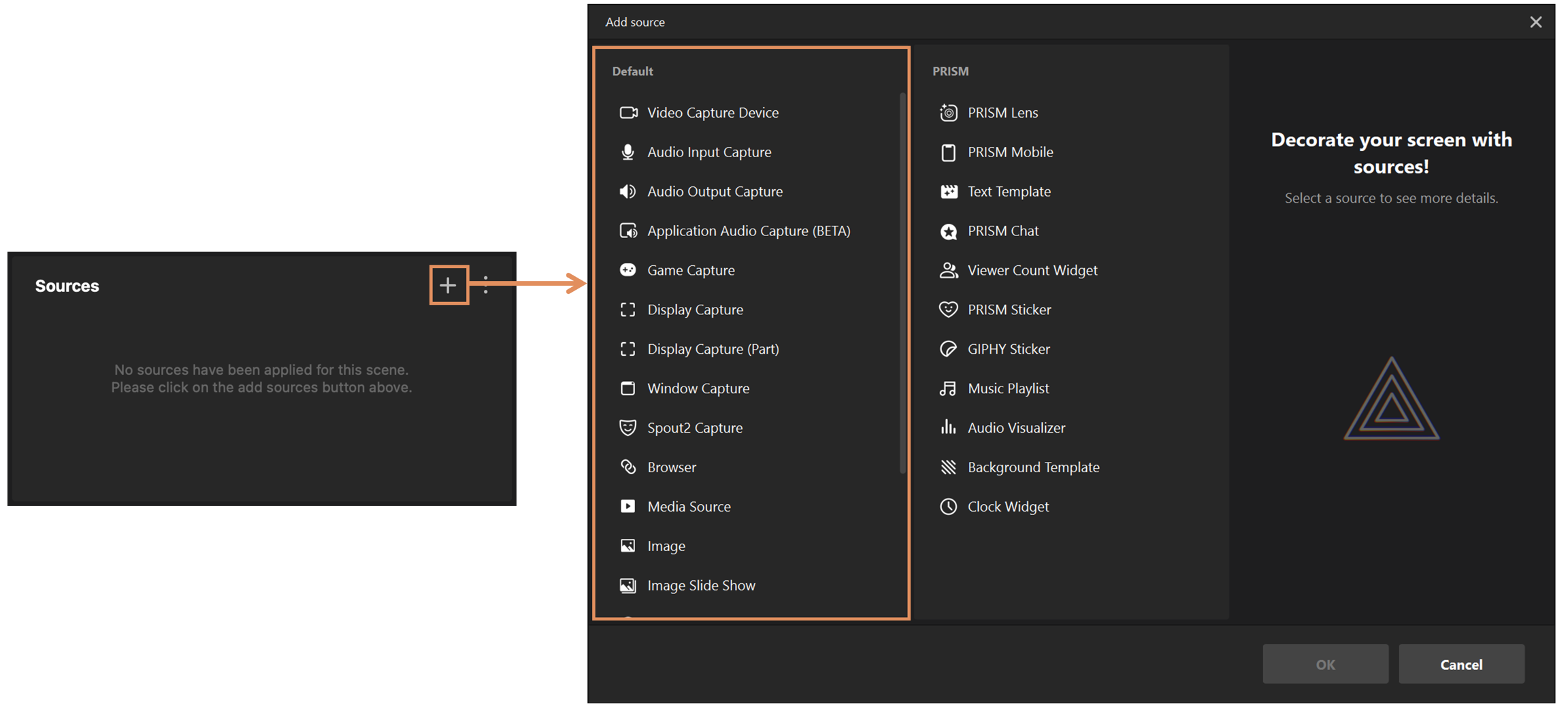
Official PRISM Live Studio Add Source screenshot saved locally for this setup guide.
Before you start
You need:
- PRISM Live Studio installed.
- A StreamRio overlay ready in your StreamRio dashboard.
- Your private StreamRio overlay URL.
Keep the overlay URL private. It is meant for your broadcast software, not public sharing.
Desktop setup: use Browser Capture
On PRISM Live Studio Desktop:
- Open the scene where StreamRio should appear.
- In the Sources section, click +.
- Choose Browser or Browser Capture.
- Create the source.
- Paste your StreamRio overlay URL.
- Apply or confirm the source settings.
PRISM's official desktop guide describes Browser Capture as a source that embeds live web content into your stream, such as real-time charts or alert widgets. StreamRio fits that pattern because it is a live browser overlay.
Mobile setup: use Web Browser Widget
On PRISM mobile, the official guide describes the Web Browser Widget as a way to load a website as a source on the broadcast screen.
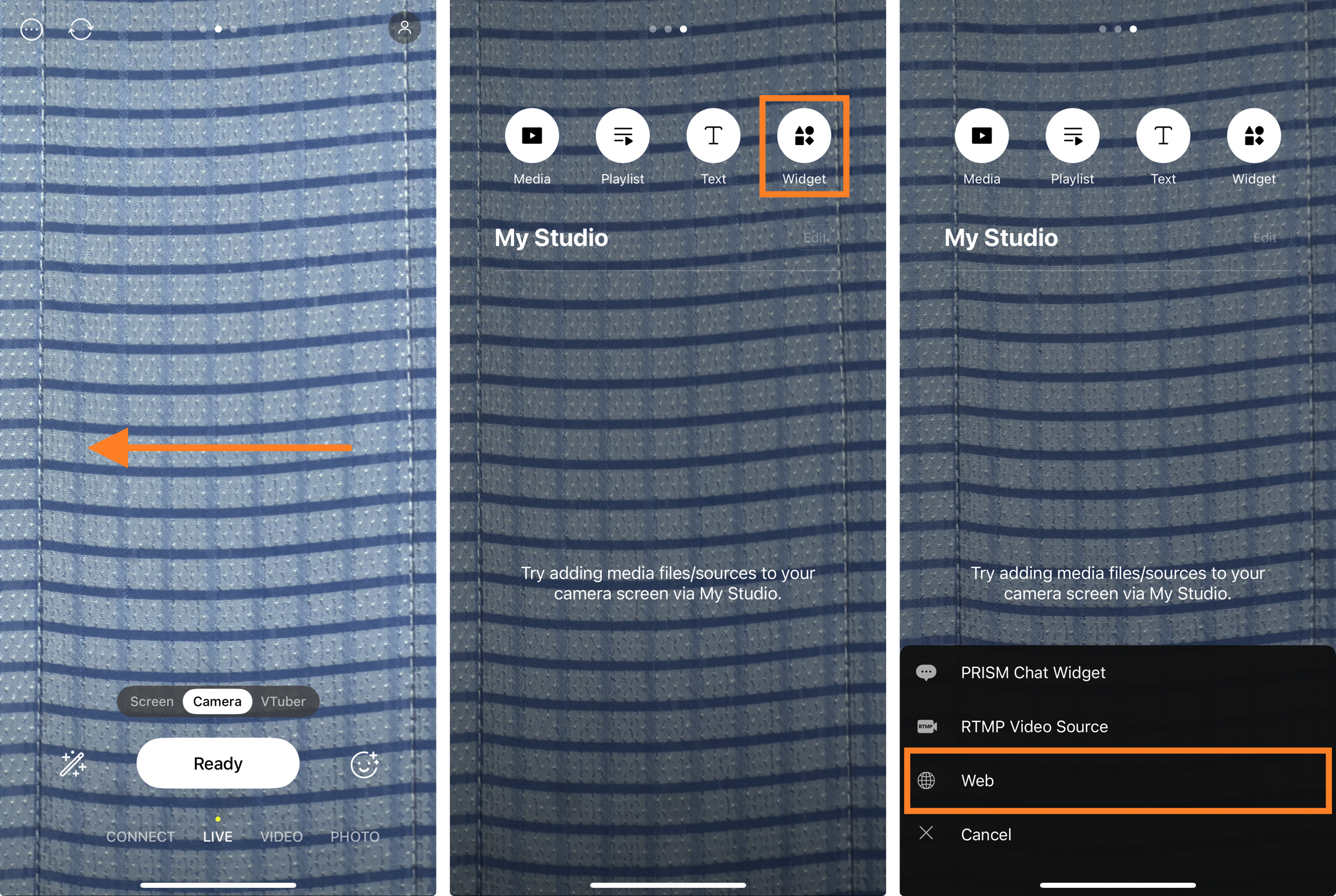
Official PRISM Web Browser Widget screenshot saved locally from PRISM documentation.
Use this path if you are setting up from PRISM mobile:
- Open My Studio.
- Tap Widget.
- Create a Web source.
- Paste your StreamRio overlay URL.
- Position and scale the overlay on the broadcast screen.
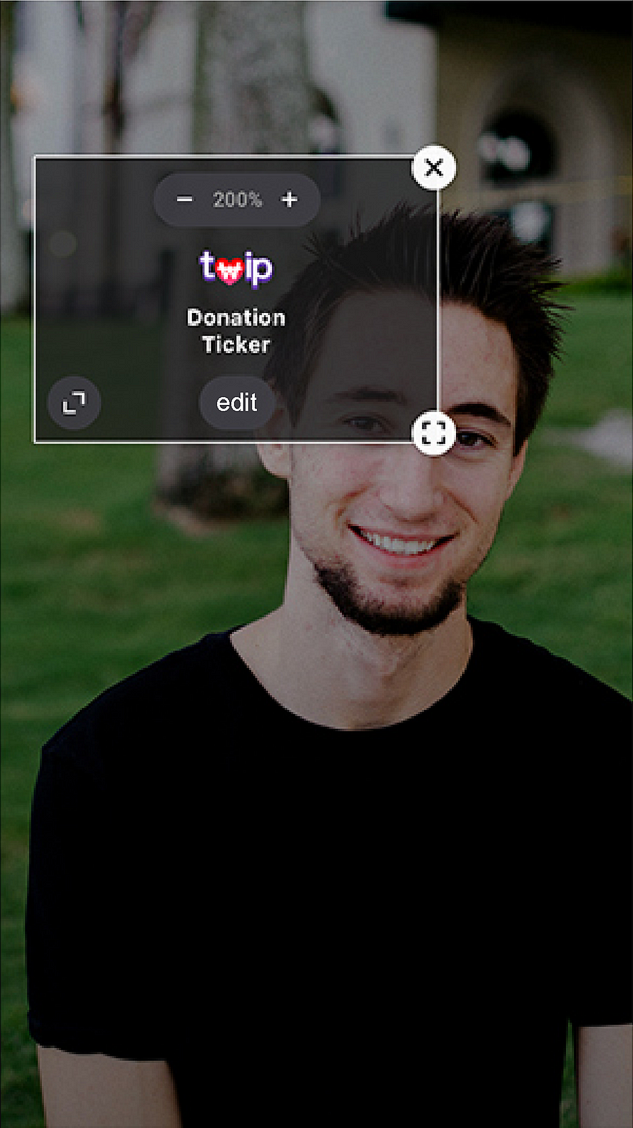
Official PRISM Web source setup screenshot saved locally from PRISM documentation.
Use compact StreamRio dimensions
StreamRio is meant to act like a companion character beside the streamer. Use a 4:5 vertical source shape, and do not treat it like a full-screen overlay unless you intentionally want a full-scene effect.
Start with a 4:5 vertical source size:
| Layout | Suggested StreamRio area |
|---|---|
| Desktop horizontal stream | 600 x 750 |
| Small corner companion | 480 x 600 |
| Mobile vertical stream | 560 x 700 |
| Larger Just Chatting scene | 720 x 900 |
If PRISM lets you size the browser/web source directly, use those values. If the app only gives visual scaling handles, start smaller and scale up until StreamRio is readable without covering the streamer.
Place StreamRio in the PRISM scene
Good placements include:
- Beside your face camera.
- Lower-left or lower-right corner.
- A vertical side area in a mobile layout.
- Near chat or widgets, as long as it does not block text.
For vertical streams, keep StreamRio away from platform UI areas, captions, gift animations, and chat overlays.
Troubleshooting StreamRio in PRISM Live Studio
StreamRio does not load
Open the StreamRio URL in a browser. If it does not load, copy the URL again from StreamRio. If it loads in a browser but not PRISM, recreate or refresh the browser/web source.
The overlay covers the streamer
Reduce the source scale. For StreamRio, smaller is usually better: the companion should be noticeable, not dominant.
The overlay is cropped
Increase the browser/web source area. Cropping usually means the source viewport is too small for the full StreamRio character and reaction space.
The overlay background is not transparent
Use PRISM's Browser Capture/Web source rather than screen capture. Screen capture can introduce background or window-frame problems.
Mobile performance drops
PRISM's mobile documentation notes web source limits for stability. Keep StreamRio compact, avoid stacking too many web widgets, and test before going live.
FAQ
Does StreamRio work with PRISM Live Studio Desktop?
Yes. Use Browser Capture or the Browser source to load the StreamRio overlay URL.
Does StreamRio work with PRISM mobile?
It can work through PRISM's Web Browser Widget, as long as your device and source limits can handle the live web overlay.
Should StreamRio be full-screen in PRISM?
Usually no. Start around 600 x 750 on desktop or 560 x 700 for vertical layouts, then position it as a companion.
Image sources and usage notes
The PRISM screenshots in this article are saved locally from official PRISM Live Studio documentation:
- Getting Started with PRISM Desktop: https://guide.prismlive.com/desktop/guides/getting-started-with-prism-desktop
- Using Web Browser Widget: https://guide.prismlive.com/mobile/guides/widgets-and-effects/web-widget/using-web-browser-widget
PRISM Live Studio is a trademark or registered mark of its respective owner. StreamRio is not affiliated with or endorsed by PRISM Live Studio or NAVER Corp. Screenshots are used for educational setup guidance and are credited to their original sources.
Setup resources
More browser-source overlay resources
StreamRio overlays also work in OBS, Streamlabs, TikTok LIVE Studio, and similar tools that support browser or web sources.